Choosing a WordPress Cache Plugin
Page caching delivers most of the benefit and is nearly identical across plugins. The real differences are in optimisation features — and those are what break sites.
Some links on this page are affiliate links: if you buy through one, we may earn a commission at no extra cost to you. It does not change what we recommend; see the editorial policy.
Start with the honest part: for an uncached site, turning on any competent page cache produces most of the available improvement. Choosing between plugins is about the extra optimisation features, and those are exactly the features that break menus, forms and carts. Enable them one at a time, measuring as you go — the wider method is in how to speed up a WordPress site.
Check what your host already provides
Before installing anything, find out whether the host runs a server-level cache — Nginx FastCGI, Varnish or LiteSpeed. Server caching is faster than a PHP-based plugin because requests never reach PHP.
If it does:
- do not add a second page cache;
- use the plugin the host recommends, if any, for purge integration;
- use a plugin for the extras only — image handling, script optimisation, database cleanup.
Managed WordPress hosts often block caching plugins outright for this reason. The comparison in hosting services for WordPress covers which do what.
The layers, and what each one is for
| Layer | Helps with | Notes |
|---|---|---|
| Page cache | Anonymous visitors | The biggest single win |
| Object cache | Logged-in users, admin, stores | Needs Redis or Memcached |
| Browser cache | Repeat visits | Headers, not a plugin feature as such |
| CDN | Distant visitors, static assets | Layer on top, not a replacement |
| OPcache | All PHP execution | Server-level, enabled by the host |
A store or membership site cannot page-cache the pages that matter most, which is why object caching matters far more there than the choice of page-cache plugin.
Features ranked by risk
Safe, enable first
- Page caching for anonymous visitors.
- Gzip or Brotli compression.
- Browser cache headers.
- Preloading the cache after publishing.
Usually safe, measure the benefit
- CSS minification.
- Image lazy loading — but never for the LCP image, and a heavy gallery plugin is often the reason there is so much to lazy-load in the first place.
- Modern image formats served with a fallback.
- Database cleanup, with a backup first.
High risk, enable one at a time
- JavaScript minification.
- Combining CSS or JavaScript files.
- Deferring or delaying JavaScript.
- Removing unused CSS.
- Critical CSS generation.
Everything in that last group causes real breakage — forms that stop submitting, menus that stop opening, sliders that never initialise. If a site breaks after "optimising", start by turning those off, as WordPress menu not showing and contact form not sending both describe.
Configure exclusions properly
Never serve cached pages for:
- cart, checkout and account pages;
- any page personalised per user;
- pages behind a login;
- form submission endpoints and REST routes used by forms.
Most plugins exclude WooCommerce pages automatically. Verify rather than assume: load the cart with an item in it, in a private window, and confirm the contents are yours and not a stranger's. A cached cart page is the most damaging caching misconfiguration there is.
Verify the cache is actually working
Load a page logged out, twice, and inspect the response headers — the technique is in how to check HTTP headers. You want a header indicating a hit on the second load.
If everything shows a miss, something is bypassing the cache: a cookie set by analytics or a consent banner, query strings, or a logged-in session. Fixing that is worth more than any optimisation toggle.
Emptying the cache, and when you have to
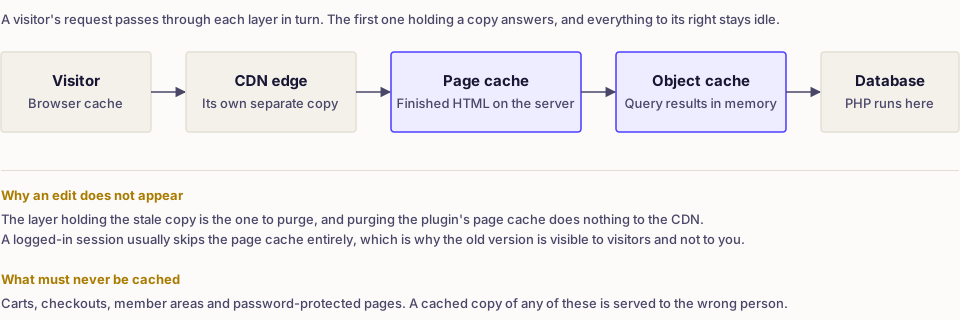
Most cache problems people report are really one problem: an edit that does not appear. Before changing settings, work out which layer is holding the old copy.
- After editing a post, a well-behaved plugin purges that URL and the archives listing it. If it does not, purge manually and check the plugin's automatic purge settings.
- After a theme or CSS change, purge the page cache and bump the asset version, or visitors keep the old stylesheet from browser cache.
- After a plugin update, purge everything once, including any object cache, because serialised option data may have changed shape.
- On a CDN, remember there are two caches. Purging the plugin's does nothing to the edge copy.
Do not wire a purge into every save on a busy site. A cache emptied constantly never warms up, and the full order of layers is in how to clear the WordPress cache.
Common mistakes
- Two page-cache plugins. They fight over
advanced-cache.phpand produce unpredictable results. - Leaving a drop-in behind. Removing a caching plugin without deleting
advanced-cache.phporobject-cache.phpleaves stale behaviour — see how to clear the WordPress cache. - Enabling everything at once. When the site breaks, you have no idea which setting did it.
- Testing while logged in. Most caches skip logged-in users entirely, so you measure the uncached path.
- Purging constantly. A cache purged on every save never warms up.
Choosing, in practice
- Host has server-level caching → use it; add a plugin only for image and asset handling.
- Shared hosting, simple site → any well-maintained free page-cache plugin, with the risky features off.
- Store or membership site → prioritise object caching and correct exclusions over page-cache features.
- You want one plugin for everything → an all-in-one performance plugin such as WP Rocket is reasonable (what you are paying for), but enable its features gradually.
Whatever you choose, record your before-and-after numbers. A plugin that scores well in reviews and makes your particular site slower is the wrong plugin, and only measurement tells you that. And if the numbers stay bad however you configure caching, the cause is often not caching at all but stacked page builders and design plugins fighting each other — see choosing a WordPress plugin for website design.
Frequently asked
- Usually you should not run a second page cache. Many managed hosts provide their own and either bundle a compatible plugin or block others outright — check their documentation first.
- Page cache stores the finished HTML for anonymous visitors. Object cache stores database query results and helps logged-in traffic, admin pages and stores, where full-page caching cannot apply.
- Almost always JavaScript combination or minification, or a page that should have been excluded — cart, checkout, account. Disable those options first, then re-enable one at a time.