Elementor Changes Not Showing on the Live Site
Elementor writes CSS to files and the page to the database. When edits do not appear, one of those two is stale — regenerate the files, then purge the caches, in that order.
Do these two things first, in this order: go to Elementor → Tools → Regenerate CSS & Data, then purge your page cache and CDN. That sequence resolves the large majority of cases, and reversing it just re-caches the stale CSS.
Why Elementor edits go missing
Elementor stores the page structure in the database and compiles the styling into CSS files under wp-content/uploads/elementor/css/. A change has to survive three stages to become visible:
- saved into the database when you click Update;
- compiled into the CSS file;
- served rather than a cached copy.
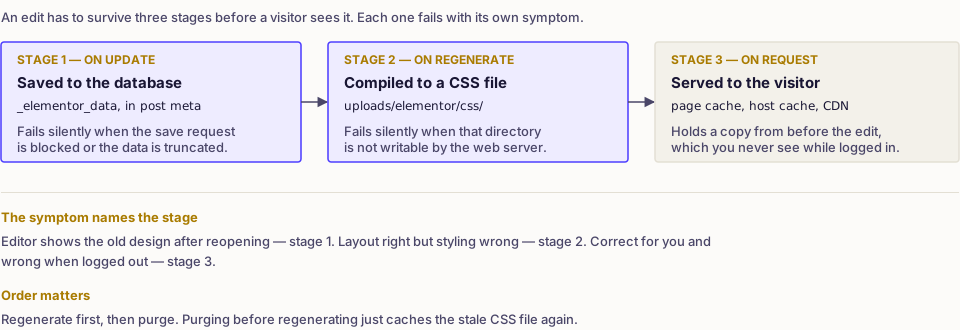
Each stage fails differently, and the symptom tells you which one — this covers the case where the editor works but the output is wrong; if the editor itself won't open, that's a separate failure covered in Elementor not working.
| Symptom | Stage that failed |
|---|---|
| Editor shows old content after reopening | The save never completed |
| Editor is correct, front end is not | CSS files or caching |
| Layout correct, styling wrong | Stale CSS file |
| Correct for you, wrong when logged out | Page cache or CDN |
| Correct on desktop, wrong on mobile | Separate mobile cache, or responsive settings |
Regenerate the CSS files
Elementor → Tools → Regenerate CSS & Data.
If styling still does not update, the CSS directory is probably not writable. Check that wp-content/uploads/elementor/ exists and is writable by the web server — directories 755, files 644, owned by the correct user. When Elementor cannot write, it falls back to serving the previous file with no error in the interface.
If an override still doesn't take effect after regenerating, check that it was added in the right place to begin with — see where custom CSS belongs in Elementor. You can also switch Elementor to print styles inline instead of using files, under Elementor → Settings → Advanced → CSS Print Method → Internal Embedding. That trades a little page weight for immunity to this whole class of problem — a reasonable trade on a site where the CSS directory keeps causing trouble.
Purge every cache layer
Elementor's own cache is only the first. Purge in this order:
- Elementor: Regenerate CSS & Data.
- Page cache plugin: purge all.
- Host cache, from the hosting panel.
- CDN, purge everything while debugging.
- Browser: private window, or DevTools with caching disabled.
The full sequence and reasoning is in how to clear the WordPress cache.
Also check whether your optimisation plugin has Remove unused CSS or critical-CSS generation enabled. Both analyse the page once and can strip rules that new content relies on. Disable those, purge, and retest before assuming Elementor is at fault.
When the editor itself does not keep changes
If reopening the editor shows the old design, the save is failing rather than the display:
- watch the browser console while clicking Update — an error there names the failing request;
- a 403 or 503 on the save request points at a security plugin or a server rule blocking admin-ajax;
max_input_varsset too low truncates large page data on save, which silently loses parts of complex pages;- a PHP memory limit reached during save produces the same silent failure — see how to increase the memory limit.
If the editor will not load at all, that is a separate problem covered in Elementor editor not loading.
Check you are editing what is actually rendering
A frequent cause that has nothing to do with caching: the page you edited is not the page being served.
- A theme template or Elementor Theme Builder template may be overriding the page. Check Templates → Theme Builder for a single or archive template applying to that content.
- A different page is set as the homepage under Settings → Reading.
- You edited the template, not the page — or the reverse.
- Two similar pages exist, and the menu points at the other one.
Confirm by adding an obvious temporary marker — a heading saying "test" — and reloading. If it does not appear anywhere, you are editing the wrong object.
Mobile-specific differences
Elementor keeps separate responsive settings per breakpoint. A change made while the editor is in desktop view does not apply to the mobile view if that value was overridden there.
Check the responsive mode switcher and inspect the value at each breakpoint. Also confirm your host or plugin is not serving a separate mobile cache, which needs its own purge.
If it keeps happening
- Give the uploads directory correct permissions once, properly, rather than regenerating CSS every week.
- Exclude Elementor's editor and preview URLs from full-page caching.
- Turn off CSS and JavaScript combination for pages built with Elementor; the benefit rarely justifies the breakage.
- Consider whether the site needs the builder on every page. Fewer builder pages means less CSS, faster loads and fewer of these incidents — the wider trade-offs are in how to speed up a WordPress site.
Frequently asked
- In wp-content/uploads/elementor/css, as one file per page plus global files. If that directory is not writable, Elementor cannot update styling and the old CSS keeps being served.
- No. It rebuilds the stylesheet files from the design already stored in the database, so the design itself is untouched.
- You are being served the uncached version as a logged-in user. Anonymous visitors get the cached copy, so the page cache and CDN still hold the old version.