WordPress Site Logo Not Changing? Start With the Image URL
Open the logo's image URL on its own before you touch a single setting. That one check splits the problem cleanly into a caching fault and an override fault, and they have nothing in common.
Quick fix: copy the logo's image address from the page source and open it in a new tab with a junk query string on the end, such as ?v=2. If the old logo still appears, the file on the server was never replaced. If the new one appears, the file is fine and something between the server and your eyes is serving stale HTML or a stale image. Two very different problems, separated in ten seconds.
The trap is going straight to the Customiser and re-uploading three times. If the cause is a cached URL or a header built somewhere else entirely, uploading again changes nothing and you lose twenty minutes proving it.
Know where the logo actually lives
WordPress stores the site logo as a theme modification — an attachment ID kept per theme, not a global site setting. Two consequences follow, and both surprise people:
- Switch themes and the logo appears to vanish. It has not been deleted; the new theme simply has no value set.
- Change the logo under one theme and the old one still shows under another, including on a staging copy running a different theme.
More importantly, the theme's own logo setting is only in charge if the theme is drawing the header. If a page builder or a block template part renders your header, the logo in that template wins and the Customiser setting is decorative.
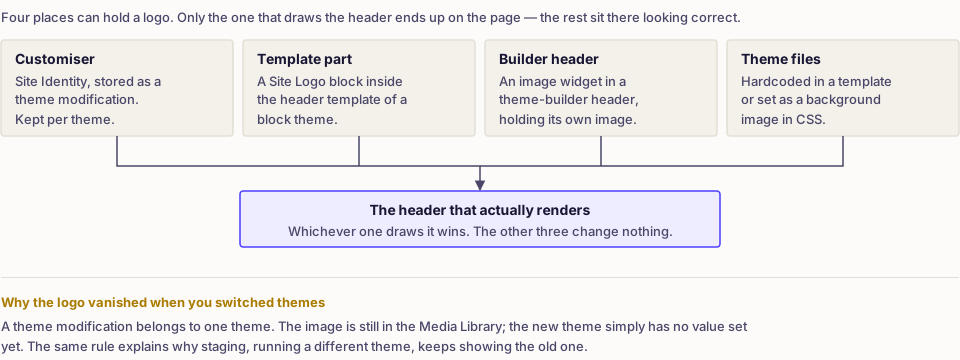
Identify which logo is stale
Sites carry more logo slots than people remember. Check each independently, logged out:
| Where the old logo shows | What to check |
|---|---|
| Desktop header only | Main logo setting or header template |
| Sticky or scrolled header | Separate sticky-header logo field |
| Mobile only | Separate mobile logo, or a cached mobile-specific page |
| Footer | Footer widget or footer template, unrelated setting |
| Browser tab | Site icon, a different setting entirely |
| Everywhere, logged out only | A cache layer serving old HTML |
| Everywhere, including the editor | The save failed, or you edited the wrong theme's setting |
A stale sticky-header logo with a correct main logo is never a caching problem. That observation alone resolves a good share of these.
Trace the header to its real source
If the logo image URL in the page source is not the file you uploaded, something else is rendering the header.
- Page builder headers. Builders commonly replace the theme header with their own template. The logo then lives in that template, and the Customiser field is ignored. Editing a header built in Elementor shows where that setting sits.
- Block theme template parts. In a block theme the header is a template part containing a Site Logo block. Edit the template part, not the Customiser. Note that a Site Logo block can also have an image set directly on it, which overrides the site-wide value.
- Theme options panels. Commercial themes often add a logo field in their own options screen, separate from the standard one, and typically take priority over it.
- Hard-coded markup. A child theme's header file may contain a literal
<img>tag. If nothing in any interface matches the URL you see, search the theme files for the filename.
The same override hierarchy explains a site title that will not change — the header is one region with several possible owners, and whichever draws it last wins.
Deal with the replaced-file case
If the direct image URL still shows the old logo with a cache-busting query, the bytes on the server are old. That means you overwrote the file rather than uploading a new one, and either the overwrite failed on permissions or you replaced the original while the page displays a generated size.
WordPress creates several resized copies of every upload. Replacing only the original leaves the generated sizes untouched, so the header keeps showing the old artwork at its old dimensions. Regenerating thumbnails rebuilds them from the current original.
Uploading as a fresh file avoids all of this and gives you a new URL that no cache holds. It is the more reliable route, and the older attachment can be deleted afterwards once nothing references it. If the logo renders but looks soft or wrong-sized, that is a separate matter covered in fixing blurry images in WordPress.
Purge caches only once you have narrowed it
If the direct image URL showed the new logo and the header still shows the old one, you have a stale HTML or asset cache — and only then is purging the right move. Clear the page cache for the homepage, then the CDN, then reload in a private window. Work one layer at a time rather than clicking everything: the full cache-layer walkthrough explains why, and clearing WordPress cache covers the mechanics.
If the logo is missing rather than merely outdated — a broken image icon or empty space — that is a delivery problem, not an override, and images not showing in WordPress is the right starting point instead.
Frequently asked
- The site logo is stored as a theme modification, which means each theme keeps its own. The image is still in the Media Library and unharmed; the new theme simply has no logo set yet, so you select it again under the new theme.
- The page still points at the same URL, so browsers and CDNs happily serve the copy they already hold. Uploading as a new file gives a new URL and sidesteps the problem entirely, which is why it is the more reliable approach.
- No. The site icon is the small favicon shown in browser tabs and bookmarks, set separately and usually cropped square. Changing one never changes the other, and confusing the two is a common reason people think a save failed.