Setting Up SSL on WordPress
Two separate jobs get conflated here: putting a certificate on the server, and telling WordPress to use it. The second one is where sites break, and a plugin only papers over it.
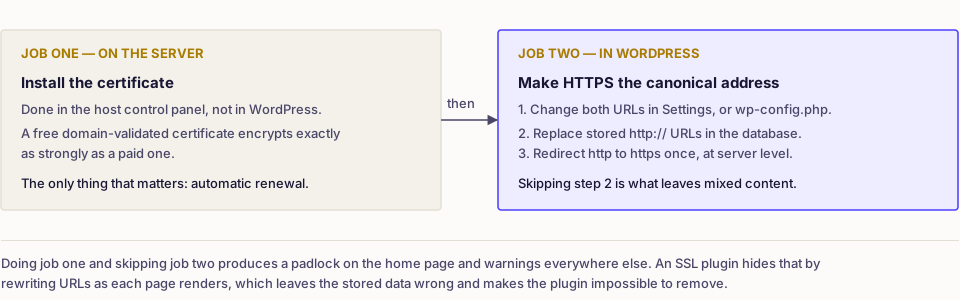
These are two jobs, not one. First a certificate has to exist on the server, which happens in your host's control panel and has nothing to do with WordPress. Then WordPress has to be told that HTTPS is now the canonical address, which is where sites break. Doing the first and skipping the second produces a padlock on the home page and a mixed-content mess everywhere else.
Take a backup before starting, per how to back up a WordPress site. This touches site URLs, and a wrong value locks you out of the admin.
Part one: getting a certificate
Almost nobody needs to think hard about this. The types differ in what the authority checks before issuing, not in the encryption:
| Type | What is verified | Who needs it |
|---|---|---|
| Domain validated | Control of the domain, automatically | Almost every site |
| Organisation validated | The legal entity behind the domain | Regulated sectors, occasionally |
| Extended validation | The entity, in depth | Effectively nobody now, browsers stopped showing it |
| Wildcard | Domain control, covers *.example.com |
Multisite on subdomains, staging subdomains |
| Multi-domain | Several named domains on one certificate | One server hosting several brands |
A free domain-validated certificate is the right answer for a normal site. It gives the same padlock, the same protocol and the same ciphers as a certificate costing two hundred a year.
The only thing that genuinely matters is automatic renewal. Free certificates are typically valid for ninety days, which is fine when a scheduled job renews them and a disaster when it does not. Confirm in your host panel that renewal is automated and that a failure notification reaches an address you read. An expired certificate takes the whole site offline behind a full-page browser warning, and it always happens on a weekend.
Install it through the host: cPanel, Plesk and managed dashboards all have an SSL screen, usually one button. If your site sits behind a proxy or CDN, the certificate arrangement is different and worth reading up on separately, as Cloudflare and WordPress covers, because you can end up with encryption to the proxy and plain HTTP behind it.
Part two: telling WordPress
Verify the certificate works first by loading https:// on your domain manually. Only then change anything in WordPress.
1. Change the two URLs. In Settings → General, set both WordPress Address and Site Address to the https:// form. If the admin is unreachable, define them in wp-config.php instead, as wp-config.php explained describes:
define('WP_HOME', 'https://example.com');
define('WP_SITEURL', 'https://example.com');
Note that defining them in config makes the Settings fields read-only, which is a useful lock and a confusing surprise if you forget you did it.
2. Fix the stored URLs. Years of content contain absolute http:// links to your own images and pages. Those are what trigger mixed-content warnings, and they live in the database, in theme options and sometimes in stylesheets. The safe search-and-replace procedure is in fixing mixed content warnings. Do this before the redirect, not after.
3. Redirect HTTP to HTTPS at server level. One permanent redirect, at the highest layer available. Apache, in .htaccess above the WordPress block:
<IfModule mod_rewrite.c>
RewriteEngine On
RewriteCond %{HTTPS} !=on
RewriteRule ^(.*)$ https://%{HTTP_HOST}%{REQUEST_URI} [L,R=301]
</IfModule>
Nginx, in the server block:
server {
    listen 80;
    server_name example.com www.example.com;
    return 301 https://example.com$request_uri;
}
Behind a proxy, test with the proxy in place: %{HTTPS} is often off on the origin even though the visitor is on HTTPS, which produces an infinite redirect loop. In that case match on the forwarded protocol header instead.
4. Consider HSTS, carefully. An HSTS header tells browsers to refuse HTTP for your domain for a set period. It is a genuine security improvement and it is hard to undo, because browsers honour the cached instruction even after you remove the header. Start with a short max-age, confirm everything works, then raise it. Do not add includeSubDomains until every subdomain has a certificate.
Why SSL plugins are a stopgap
They work by filtering output: as each page renders, the plugin rewrites http:// references to https://. That makes the padlock appear without changing a single stored URL.
The costs are real. Every request pays for the rewrite. The underlying data stays wrong, so anything reading it directly, including feeds, emails and REST responses, may still emit HTTP. And deactivating the plugin returns the site to warnings, which means it is now load-bearing.
They are useful for exactly one thing: a temporary bridge while you carry out the database work, on a site that cannot be left broken meanwhile. Do the real fix, then remove the plugin.
Multisite and subdomains
Each subdomain needs coverage, which is what a wildcard certificate is for. On subdirectory multisite one certificate covers everything. On subdomain multisite, either use a wildcard or issue per-site certificates, and remember that the network's own URL settings are stored separately from each site's.
Common mistakes
- Changing the URLs before the certificate works. The site becomes unreachable over both protocols. Test HTTPS manually first.
- Trusting renewal without checking. The failure mode is a total outage.
- Redirecting in PHP or a plugin instead of the server, adding a WordPress bootstrap to every HTTP request.
- Chaining redirects.
http://example.comtohttps://example.comtohttps://www.example.comis two hops where one would do. Pick the canonical host and go there directly. - Enabling HSTS with a long duration on day one, then discovering a subdomain has no certificate.
- Leaving both versions reachable. Two addresses serving identical content is the duplicate-content problem, and it also produces the padlock inconsistencies described in fixing the not secure warning.
Verify
Load the site over HTTP and confirm a single 301 to the HTTPS version of the same path, using the method in how to check HTTP headers. Open a content-heavy page and a page with an embedded form, and check the browser console shows no mixed-content warnings. Confirm the padlock in a private window, not just in your own logged-in browser. Then note the certificate's expiry date somewhere you will see it, and treat the rest of the hardening as covered in the WordPress security checklist.
Frequently asked
- For almost every site, no. A free domain-validated certificate from an automated authority encrypts exactly as strongly as a paid one. Paid certificates buy organisation validation and warranties, which matter to few sites and to no browser.
- It is a stopgap. Plugins rewrite URLs as pages render, which hides the problem rather than fixing the stored data, and every request pays for it. Correct the database URLs and redirect at server level, then the plugin is unnecessary.
- Not if you redirect properly. A single permanent redirect from each HTTP URL to the same path on HTTPS preserves signals. Rankings suffer when the move leaves both versions reachable, or chains several redirects together.