The Default WordPress .htaccess File
WordPress owns seven lines of this file and regenerates them on demand. Everything else in it was put there by you, a plugin or the host, and that distinction is the whole troubleshooting method.
WordPress owns seven lines. Everything between the # BEGIN WordPress and # END WordPress markers belongs to WordPress and gets rewritten whenever permalinks are saved. Anything outside those markers was added by you, a plugin or your host, and it is never restored automatically. Almost every .htaccess problem resolves once you know which side of the markers you are looking at.
What the default actually contains
For a single-site install at the web root:
# BEGIN WordPress
<IfModule mod_rewrite.c>
RewriteEngine On
RewriteRule .* - [E=HTTP_AUTHORIZATION:%{HTTP:Authorization}]
RewriteBase /
RewriteRule ^index\.php$ - [L]
RewriteCond %{REQUEST_FILENAME} !-f
RewriteCond %{REQUEST_FILENAME} !-d
RewriteRule . /index.php [L]
</IfModule>
# END WordPress
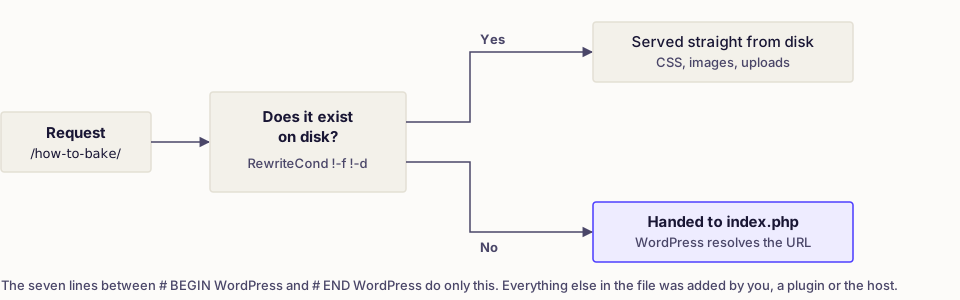
Read the last three lines together, because they are the whole point: if the requested path is not a real file, and not a real directory, hand the request to index.php. That is the front controller pattern. It is how /how-to-bake-bread/ reaches WordPress at all, given no such folder exists on disk.
The HTTP_AUTHORIZATION line passes the authorisation header through to PHP, which some server configurations strip. Without it, application passwords and various REST integrations fail with an authentication error that looks like a plugin bug.
Multisite gets a longer block with extra rules for per-site admin paths, and a subdirectory install has a different RewriteBase. Do not copy a block from another site.
Where the file is, and why you cannot see it
It sits beside wp-config.php, normally in the web root. The leading dot marks it hidden on Unix-like systems, so enable showing hidden files in your FTP client or the host's file manager. In cPanel that is a checkbox in the File Manager settings dialog.
If there is no file at all, that is normal on a fresh install using plain permalinks. WordPress writes one the first time you save a permalink structure that needs rewriting, provided the file or the directory is writable.
Regenerating it
The fix for a large share of routing faults:
- Rename the existing file to
.htaccess-old. Renaming, not deleting, so plugin rules survive if you need them back. - Load the site. If it works now, the problem was in the file.
- Go to Settings → Permalinks and click Save Changes without altering anything. WordPress writes a clean default block.
- Reintroduce your own rules one at a time, testing between each.
That sequence resolves most cases of permalinks not working and a good share of 404 errors, because both usually mean the rewrite block is missing or mangled.
If WordPress cannot write the file it says so and prints the rules for you to paste manually. That is a permissions matter, not a bug.
Nginx does not read it
This trips up a great deal of advice found online. Nginx has no per-directory configuration file and ignores .htaccess entirely. On Nginx the equivalent rules live in the server block and require a config reload, which usually means asking the host. Many managed WordPress platforms run Nginx, or Apache behind an Nginx proxy, and in the second case the file may be read but overridden.
Check before editing. Your host's dashboard says which stack you are on, and the broader picture is in the WordPress server stack. Apache with AllowOverride None is the other case where the file exists and does nothing.
What people legitimately add
Outside the markers, above them for redirects and below for most other things:
| Addition | Notes |
|---|---|
| Redirects after a URL change | Put them above the WordPress block so they run first |
| Forcing HTTPS | Better here than in a plugin, as setting up SSL covers |
Blocking access to wp-config.php and .env |
Cheap, worth doing |
Denying PHP execution in wp-content/uploads |
One of the more useful hardening rules |
| Cache and expiry headers | Often added by a caching plugin, which manages its own block |
| Deny by IP or user agent | Blunt, and easy to lock yourself out with |
Each caching or security plugin writes its own marked block. Leave those alone and let the plugin manage them, or your edits vanish on its next update.
When it breaks the site
.htaccess errors are unforgiving because Apache applies the file to every request, including the admin. Two failure shapes:
- A 500 error on every page, usually a typo or a directive from a module the server does not load. Rename the file to confirm, then read the server error log, which names the offending line. The general procedure is in fixing a 500 internal server error.
- A redirect loop, usually an HTTPS rule behind a proxy where the origin still sees plain HTTP. Match on the forwarded protocol header instead.
Back up the file before every edit, and keep a copy outside the server, per how to back up a WordPress site. It is a few hundred bytes and it can take the site down.
Common mistakes
- Editing inside the WordPress markers. Saving permalinks overwrites your work without warning.
- Copying a block from another site.
RewriteBaseand multisite rules are install-specific. - Pasting rules for a module the server lacks. Wrap additions in an
IfModulecheck so a missing module is ignored rather than fatal. - Putting redirects below the WordPress block. The catch-all rule has already sent the request to
index.php. - Using it for security on Nginx. The rules are decorative there.
- Adding rules for a security fix. Blocking a URL does not patch the code behind it, as the WordPress security checklist sets out.
Verify
After any edit, load the home page, one post, one category archive and the admin, in a private window. Check that a URL which should 404 still returns 404 rather than the home page, which is the signature of a broken rewrite. If you added a redirect, confirm it is a single hop to the final address rather than a chain.
Frequently asked
- In the same folder as wp-config.php, normally the web root. It starts with a dot, so file managers and FTP clients hide it until you enable showing hidden files. If none exists, WordPress creates one when permalinks are saved.
- On Apache, yes, as a diagnostic. Rename rather than delete, load the site, then go to Settings and save permalinks so WordPress writes a fresh default block. Anything a plugin added will be gone, which is usually the point.
- Most likely the server is Nginx, which never reads the file. It can also be Apache with AllowOverride set to None, which makes the file present and ignored. Check which server you are on before editing anything.