WordPress functions.php Explained
It is a theme file that runs on every request, front end and admin alike. That single fact explains where it lives, why a typo locks you out, and why most snippets do not belong in it.
It is a theme file that executes on every request. Not core, not a plugin, and not limited to the front end. Once that lands, the rest follows: why it disappears when you switch theme, why a missing semicolon takes down the admin as well as the site, and why most of the snippets people paste into it belong somewhere else.
Where it is
wp-content/themes/your-theme-name/functions.php, inside the folder of whichever theme is active. Every theme ships one, so the file that matters is the active theme's, and if you run a child theme there are two files in play.
You reach it by SFTP, through your host's file manager, or through Appearance → Theme File Editor in the admin. Use one of the first two. The reason is in the next section.
When it runs
WordPress loads things in a fixed order on every request:
- Must-use plugins, from
wp-content/mu-plugins. - Active plugins.
- The child theme's
functions.php, if a child theme is active. - The parent theme's
functions.php.
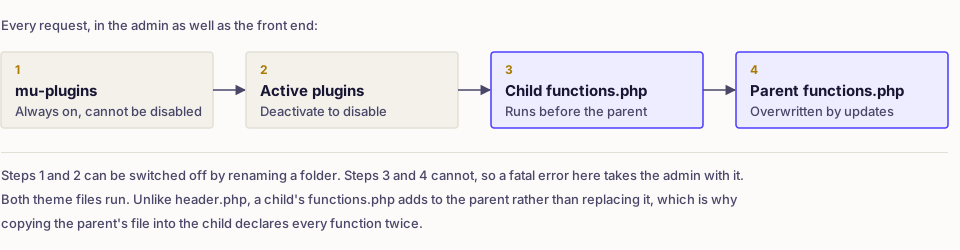
Two consequences worth holding on to. The child's file runs before the parent's, which surprises people expecting override semantics. Template files like header.php are replaced by the child's version; functions.php is not replaced, it is added. That is why a child theme's file should contain only your additions, never a copy of the parent's, as creating a WordPress child theme covers.
It also runs in the admin. A fatal error here does not just break the front end. It breaks the dashboard too, which is exactly when you would want to go and undo the change.
Why the built-in editor is a bad idea
The Theme File Editor saves straight to a live file with no syntax checking and no undo. A missing brace produces a fatal error on the next request, and because the file loads in the admin as well, the editor you would use to fix it is also gone.
Modern WordPress softens this. It attempts to detect a fatal error caused by a theme or plugin and emails a recovery mode link to the administrator address, which loads the admin with the offending code paused. That is a genuine safety net, and it depends on the site being able to send email, which many cannot. Do not rely on it.
Edit over SFTP, keep the previous version of the file, and change one thing at a time.
Most snippets do not belong here
This is the practical decision, and getting it right saves a lot of future confusion. The question to ask is whether the code describes how the site looks or what the site is.
| What the code does | Where it belongs |
|---|---|
| Enqueues the theme's styles and scripts | functions.php |
| Registers menu locations, image sizes, theme support | functions.php |
| Registers a custom post type or taxonomy | A site-specific plugin |
| Adds a shortcode used across your content | A site-specific plugin |
| Connects to an external service or API | A site-specific plugin |
| Disables an emoji script or a core feature site-wide | A site-specific plugin |
| Must run before anything else, always | mu-plugins |
The test is what happens when you change theme. Menu locations and image sizes should go with the old design. Your content types and shortcodes should not, and losing them is how a theme switch turns into an emergency, as changing a WordPress theme describes. Content registered by a theme leaves its rows in the database and its admin screens gone, which is covered further in custom post types explained and in WordPress shortcodes explained.
A site-specific plugin is not a big undertaking. One file in wp-content/plugins/, a header comment, and it appears in the plugins list like anything else:
<?php
/*
Plugin Name: Site Customisations
Description: Behaviour this site owns, kept out of the theme.
Version: 1.0.0
*/

// Your snippets go here, not in functions.php.
It has a second advantage: if it breaks the site, you can deactivate it by renaming its folder over SFTP, per disabling plugins without admin access. A broken functions.php has no such switch.
Writing in it safely
- Never open with a stray character. A blank line or a space before
<?phpsends output early and produces headers-already-sent warnings. - Do not close the file with
?>. Trailing whitespace after it causes the same problem, and the closing tag is optional in a file that is pure PHP. - Hook, do not execute directly. Code that runs at file load happens before WordPress is ready. Wrap it in
add_actionon an appropriate hook. - Prefix your function names.
get_header_image()already exists; a redeclaration is a fatal error. - Guard against double declaration in a child theme with
function_existswhere the parent may define the same name.
<?php
// wp-content/themes/your-child-theme/functions.php

add_action('wp_enqueue_scripts', function (): void {
    wp_enqueue_style(
        'child-style',
        get_stylesheet_directory_uri().'/style.css',
        ['parent-style'],
        wp_get_theme()->get('Version')
    );
});
Recovering from a fatal error
- Open the file over SFTP and remove what you added. The site returns on the next request.
- If you cannot identify the change, restore the copy you kept before editing.
- If you have no copy, replace
functions.phpwith a fresh one from the theme's original download, accepting that any earlier customisations go with it. - Turn on error reporting so the next attempt tells you the line number, per enabling WordPress debug mode. The white screen itself is covered in fixing the WordPress white screen.
Note that constants like site URLs and database credentials are not set here at all. Those belong in the config file, described in wp-config.php explained.
Common mistakes
- Editing the parent theme's file. The next theme update overwrites it.
- Using the built-in editor on a live site. One typo, no admin.
- Copying the parent's whole file into the child. Every function is now declared twice.
- Putting site behaviour in the theme. It vanishes at the next redesign.
- Pasting snippets without knowing which hook they need. Code at file scope runs too early to do anything useful.
- Leaving a closing PHP tag. Invisible whitespace, visible warnings.
Verify
After any edit, load the front page and the admin dashboard, both in a private window. Confirm no warnings appear at the top of the page, which is what early output looks like. If you added something conditional, check the page where it should apply and one where it should not. Then switch to a default theme briefly and back, to confirm nothing you rely on disappeared with the theme.
Frequently asked
- In the active theme's folder, at wp-content/themes/your-theme/functions.php. Each theme has its own, so the file that matters is the one belonging to whichever theme is currently active, plus the child theme's copy if you use one.
- No. Both run, and the child's file loads first. That ordering is deliberate, and it is why a child theme adds behaviour rather than overriding it, unlike template files which are replaced outright.
- Remove the code you added using SFTP or the host's file manager, and the site returns immediately. WordPress also emails a recovery mode link to the administrator address when a fatal error occurs.