How to Add reCAPTCHA to a WordPress Form
Register the keys for the right version, add them to the form plugin rather than two places at once, then check that real submissions still arrive — captchas fail silently by design.
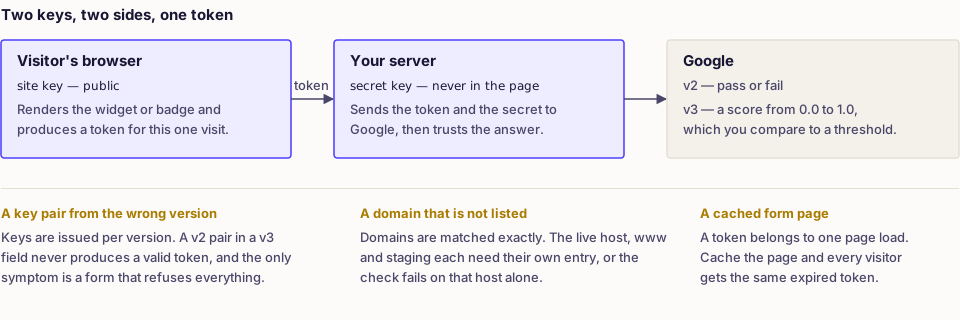
Get the version right first. Keys are version-specific: a v2 key pair in a v3 field fails every time, with no useful error. That single mismatch causes most "reCAPTCHA broke my form" reports — and in a page builder it surfaces as a spinner that never resolves rather than an error, which is why Elementor form not sending starts at the browser console.
v2 versus v3
| v2 Checkbox | v3 | |
|---|---|---|
| Visitor sees | "I'm not a robot" tick box | Nothing |
| Result | Pass or fail | A score from 0.0 to 1.0 |
| Configuration | None beyond keys | A threshold you choose |
| Failure mode | Visitor is told | Silent rejection |
| Best for | Low-traffic contact forms | Forms where friction costs conversions |
v3 is more elegant and harder to support, because a legitimate visitor scoring below your threshold is refused with no explanation. If you use it, log rejected submissions somewhere so you can see what you are turning away.
Step 1: register the keys
- Open the reCAPTCHA admin console and add a site.
- Choose the version deliberately — v2 "I'm not a robot" checkbox, or v3.
- Add every domain the form appears on: the live domain,
wwwif used, and your staging domain. - Copy the site key and secret key.
localhost needs adding explicitly if you test locally. Domains are matched exactly, so a form on a subdomain needs that subdomain listed.
Step 2: add the keys in one place only
Most form plugins have their own reCAPTCHA settings. Use those, not a separate captcha plugin as well — two implementations on one page render two widgets and both fail.
- Contact Form 7 — under Contact → Integration, then add the
[recaptcha]tag for v2, or rely on the automatic v3 integration. - WPForms, Gravity Forms, Ninja Forms — a captcha field or setting per form, with keys stored globally.
- Elementor Pro forms — keys go under Elementor → Settings → Integrations, then add a reCAPTCHA field to the form.
- WooCommerce checkout and registration — handled by a dedicated plugin; core does not include it.
Save, then load the form logged out. The v2 widget should render; for v3 you should see the badge in the corner.
Step 3: test as a real visitor would
Testing while logged in, in the browser you built the site in, proves very little.
- Open a private window on a different network — mobile data works well.
- Submit the form with realistic content.
- Confirm the notification email arrives.
- Confirm the entry is stored in the plugin's submissions list.
That last point matters: enable submission storage before adding a captcha, so a lost notification does not mean a lost enquiry. The reasoning is in contact form not sending email.
Tuning v3
The default threshold of 0.5 is a starting point, not a recommendation.
- Lower it to 0.3 if legitimate submissions are being rejected — mobile users, VPN users and privacy-focused browsers all score lower.
- Raise it only if spam is getting through at the default.
- Log the score with each submission if the plugin supports it, then look at the distribution before changing anything.
Watch enquiry volume for a week after enabling. A silent drop in submissions is what a threshold set too high looks like from the business side.
Common problems
| Symptom | Cause |
|---|---|
| "Invalid site key" | v2 key used in a v3 field, or vice versa |
| Widget does not appear | JavaScript blocked, or combined by an optimisation plugin |
| Always fails on one domain | Domain missing from the key allowlist |
| Works logged in, fails logged out | Page cache serving a stale token |
| Fails intermittently | Cached form page — exclude it from full-page caching |
| Form submits but nothing arrives | Not a captcha problem — see WordPress not sending emails |
The caching cases are the ones people chase longest. Exclude form pages from full-page caching, and disable JavaScript combination for them — the risk list is in choosing a cache plugin.
Alternatives worth considering
- A honeypot field — a hidden input bots fill in and humans do not. Zero friction, catches a large share of automated spam, and costs nothing.
- A time check — reject submissions completed within a second or two of the page loading.
- A simple question relevant to your audience, which avoids sending visitor data to a third party.
- Server-side spam filtering, which scores submissions after the fact rather than blocking them up front.
- Restricting the page itself, for a form that does not need to be public at all — WordPress can password protect a page natively, with no plugin required.
- Blocking known bad sources at the server level, via rules added to the site's .htaccess file — effective against repeat offenders, but add them carefully so they do not disturb WordPress's own rewrite rules.
Consider privacy as well: reCAPTCHA sends visitor data to a third party, which may need disclosure in your privacy policy and a mention in your consent banner — see cookie consent plugins.
Frequently asked
- v2 shows a challenge and gives a clear pass or fail. v3 scores silently and needs a threshold you tune. v2 is easier to support; v3 is less intrusive when configured carefully.
- Usually mismatched keys, keys registered for a different version, a domain missing from the key's allowlist, or a v3 score threshold set too high.
- It stops most automated spam. Determined or human-driven spam gets through, so pair it with a honeypot field and server-side validation.